Login to Coupa Supplier Portal and select Invoices from the toolbar across the top
Note: The red coin button on the order screen should not be used as this will not cancel or adjust your invoice value.
Click Create Credit Note
Note: A message will appear requesting the reason for the credit note. Please only select ‘Resolve issue for invoice number’ and you will be able to select the invoice number it relates to.
Once your invoice has been selected, you will be asked whether you would like to completely cancel or partially adjust the invoice.
Please select the option you would like to proceed with.
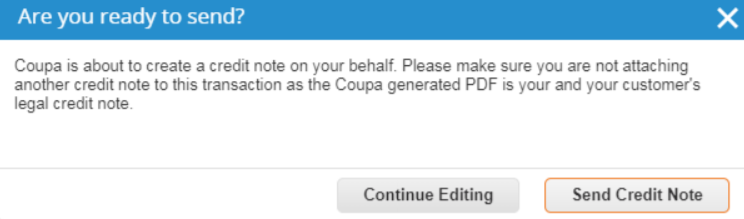
Click Send Credit Note if you are happy to proceed Note: For any credits that are not against a purchase order, a warning message will appear regarding your 17 digit charge code. If you are happy this has been added in the Invoice description, please click Submit.
Once this has been completed, it will take you to the homepage.